Send payment links
Create payment links for customers to pay online for products, services, or donations.
3 min readUpdated August 2026
Step 1: Pay Link feature
The Pay Link option is available on your QwikPay Merchant Portal and Merchant App, allowing you to accept payments from your customers online.
Step 2: Creating a payment link
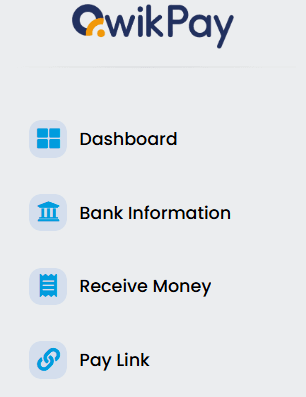
- Go to the Pay Link section in your QwikPay Merchant Portal or Merchant App.
- Choose one of two payment options:
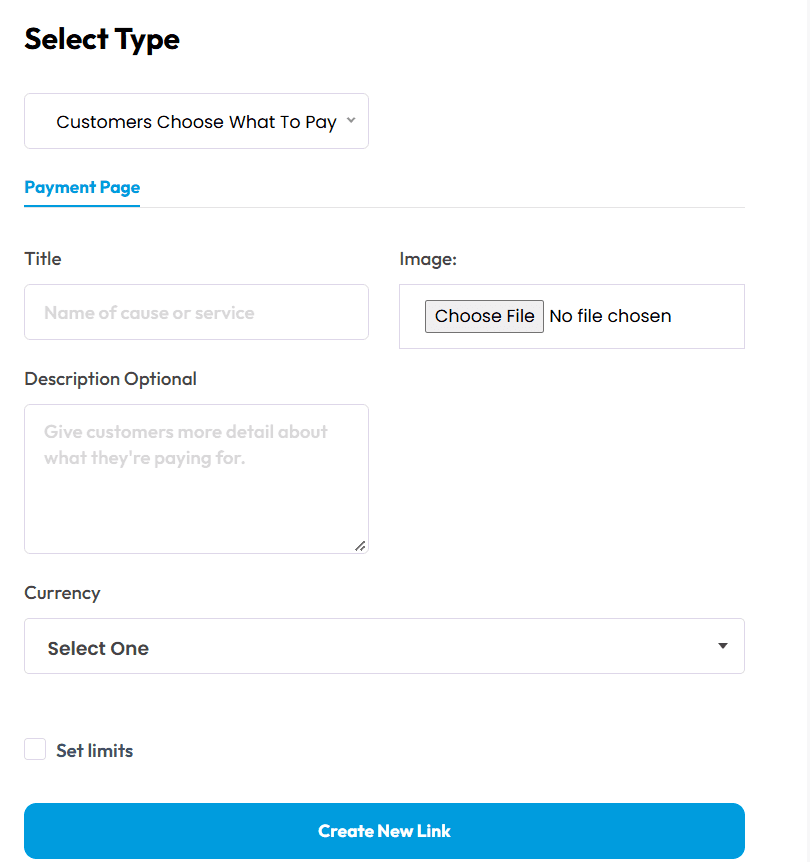
- Customers choose what to pay – Customers can enter the amount they would like to pay. Suitable for tips, charity, donations, and similar payments. You can set limits for the payment.
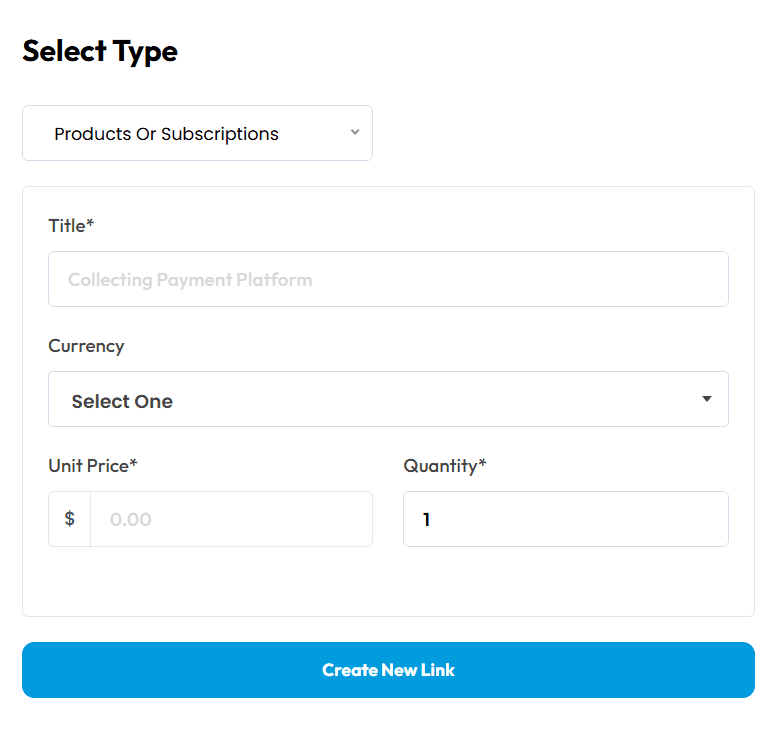
- Products or Subscription – Enter a fixed amount for the customer to pay. Suitable for product sales, services, subscriptions, and other fixed-price payments.
- Customers choose what to pay – Customers can enter the amount they would like to pay. Suitable for tips, charity, donations, and similar payments. You can set limits for the payment.
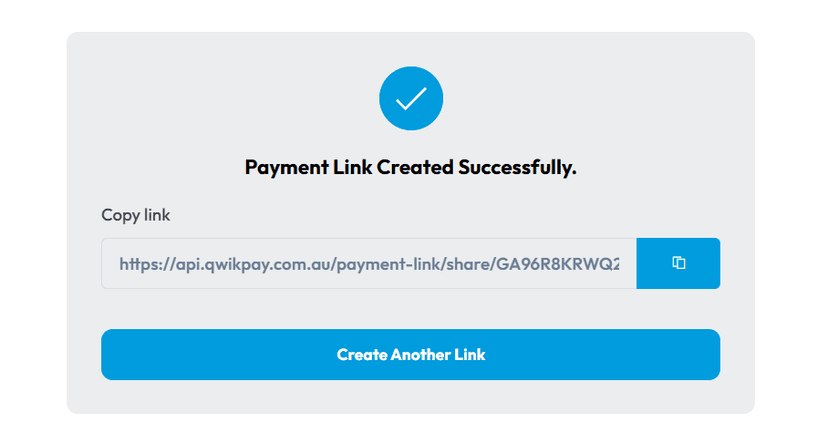
- Once the payment link is created, it will generate a unique link that can be sent to the customer.
Step 3: After payment
Once the customer makes a payment using the payment link, you will:
- Instantly receive a payment confirmation notification on your registered email address.
- See the transaction marked as a successful sale in the Transactions section of your Merchant Portal.
Related articles
Still need help?
Our support team can help with your account.