Add funds and make payments
Verify your account, add money with PayID or PayTo, then pay a QwikPay merchant by scanning their QR code.
Before you begin
What you need
You need the QwikPay app and access to your banking app.
New accounts must complete an identity check before adding money or making payments.
You can add between $15 and $500 per day.
Verify your identity
Complete the identity check
- Sign in to the QwikPay app.
- Follow the identity verification prompt.
- Complete each on-screen step.
- Wait for confirmation that your wallet is ready.
If you skip verification during sign-up, QwikPay will prompt you again the next time you sign in.
Add money
Choose a funding method
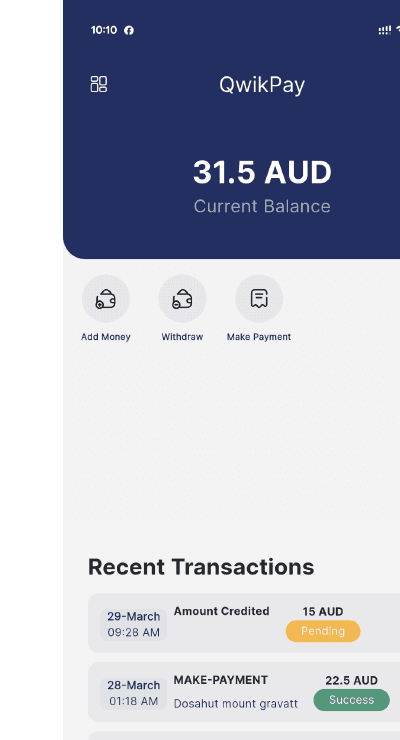
Open QwikPay, select Add Money, enter an amount, then choose PayID or PayTo.
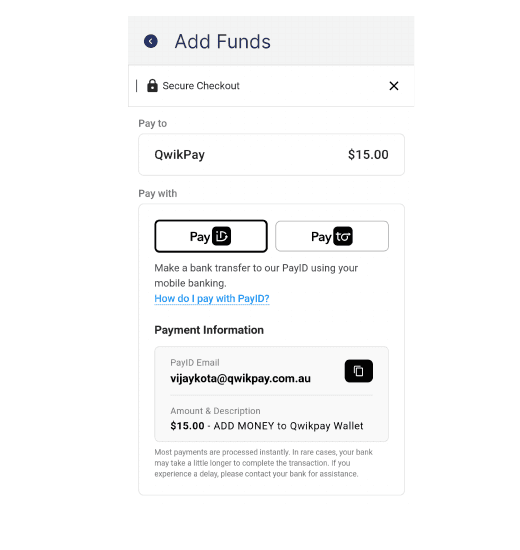
- Copy the unique QwikPay PayID email shown in the app.
- Open your banking app and start a PayID transfer.
- Paste the QwikPay PayID email as the recipient.
- Enter the exact top-up amount and confirm the transfer.
PayID transfers usually appear in your QwikPay wallet within a few minutes.
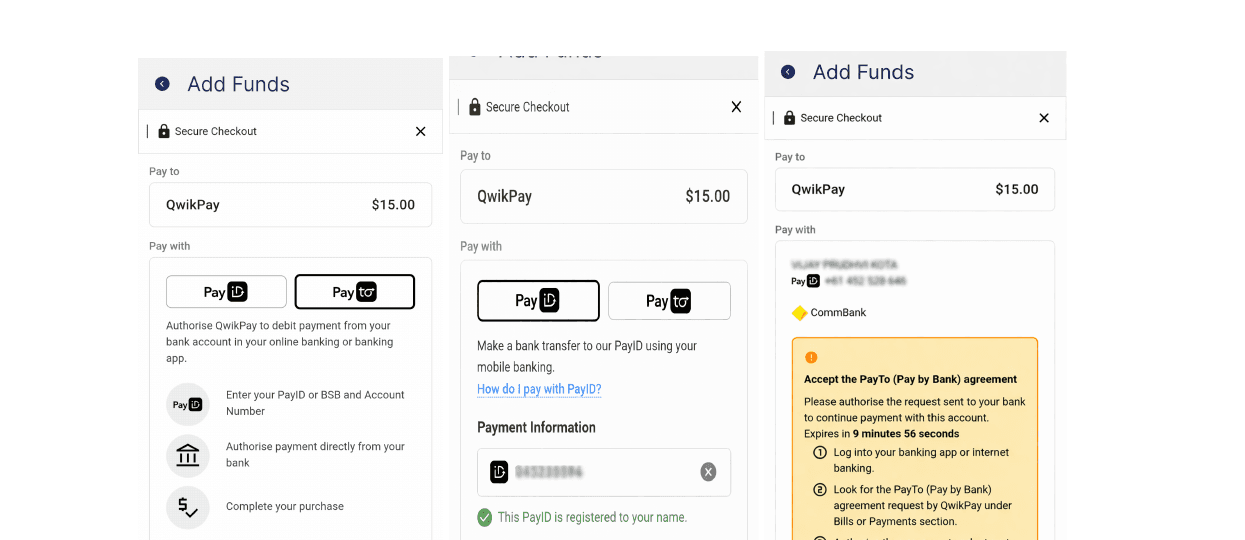
- Sign in to your QwikPay account and select Add Money. Enter the amount you want to add, then select Next.
- Enter the email address or phone number registered as your bank PayID. Select Verify PayID, then select Continue after it has been verified.
- Open the PayTo notification from your bank. If you did not receive a notification, find the PayTo agreement in your banking app or online banking.
- Review the PayTo agreement in your banking app and authorise it.
- Return to QwikPay and confirm that the funds have been added to your account.
After the PayTo agreement is authorised, future top-ups are faster. Sign in to QwikPay, enter the amount you want to add, then confirm with Face ID or your fingerprint. The approved amount will be added automatically.
Make a payment
Scan the merchant QR code
- Open QwikPay and select Scan or Make Payment.
- Scan the QR code shown by the merchant.
- Check the payment amount.
- Confirm the payment.
The payment is processed instantly. QwikPay charges customers $0 in payment fees.
Earn Qwik Points
Receive rewards automatically
Points are added automatically after a successful payment.
You can check your balance in the Rewards section and redeem eligible offers from participating merchants.
Related articles
Still need help?
Our support team can help with your account.