How to use PayTo
Set up a PayTo agreement through your bank and add funds to your QwikPay account.
Add money
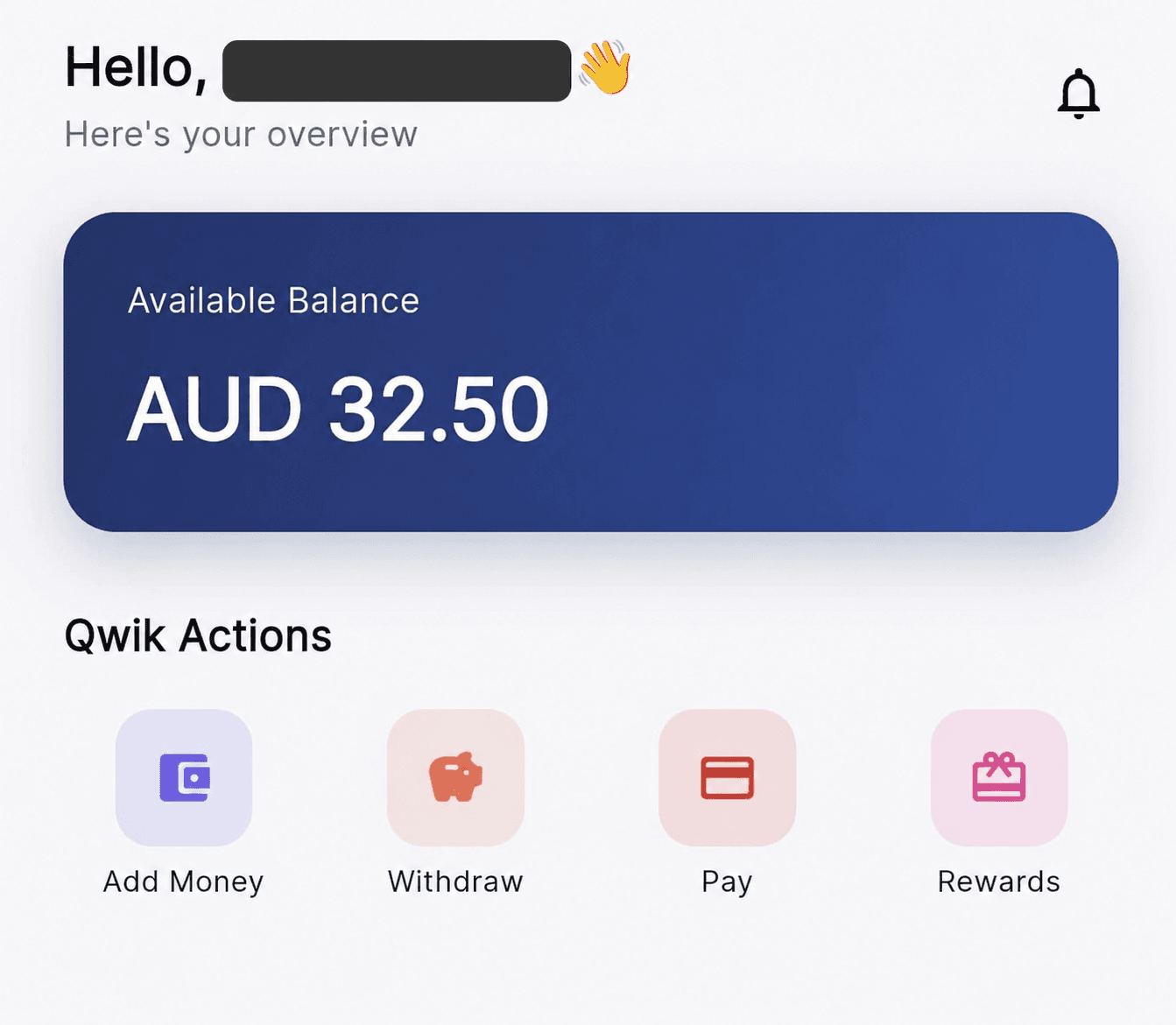
Log in to your QwikPay account and select Add Money.
Enter the amount you would like to add, then select Next.
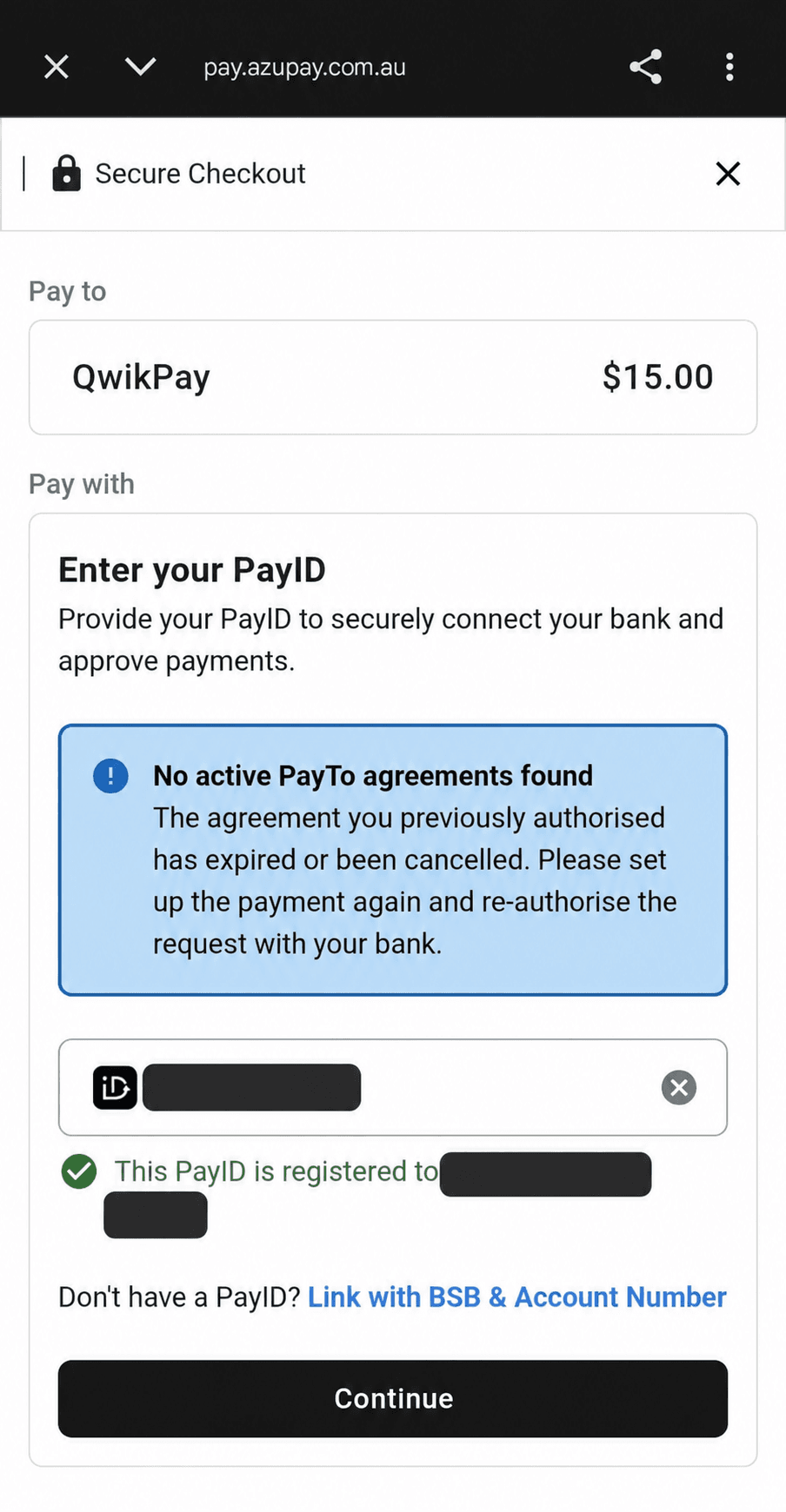
Verify your PayID
Enter the email address or phone number registered as your PayID and linked to your bank account.
Select Verify PayID. Once verified, select Continue.
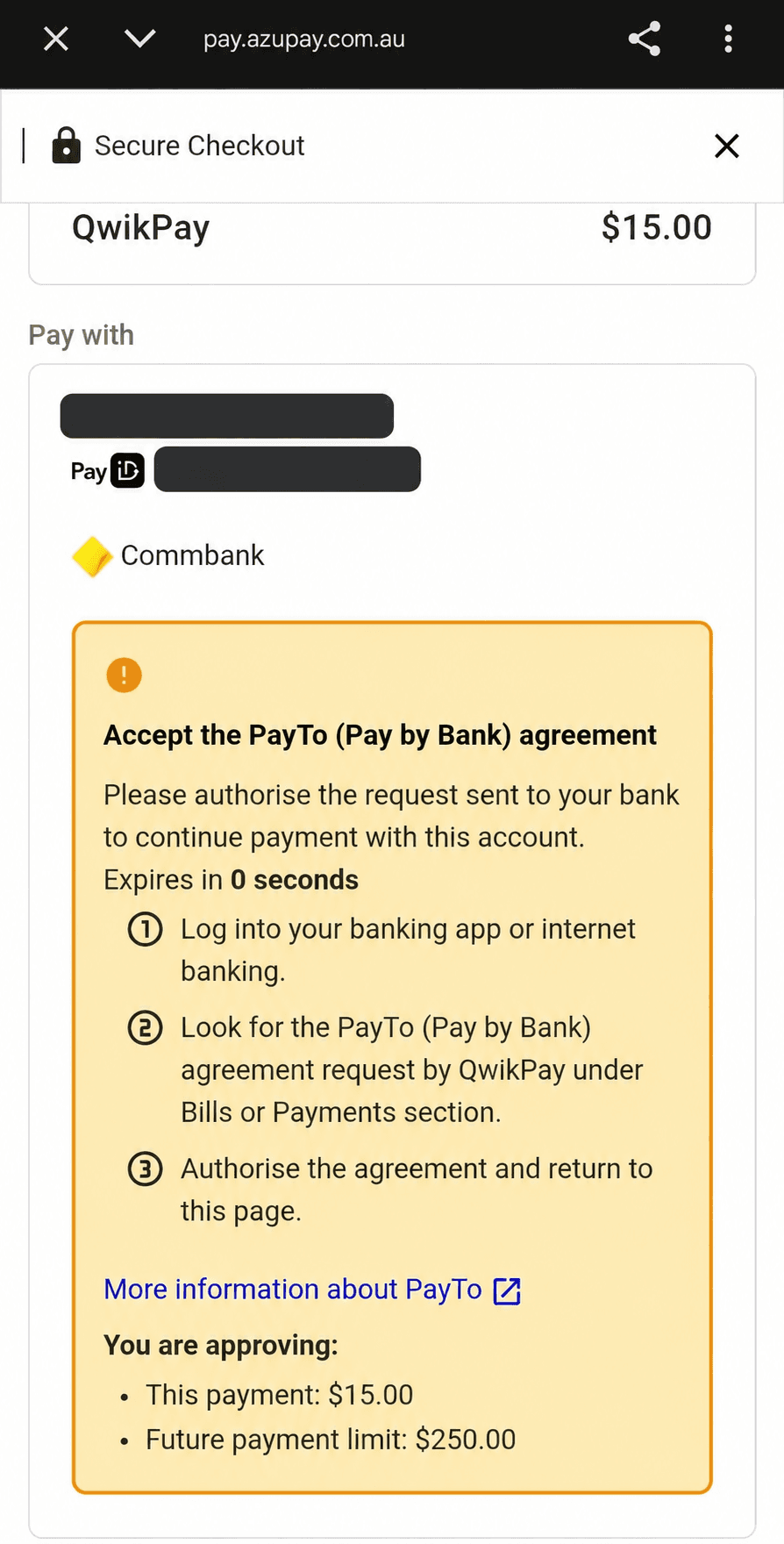
Open the PayTo agreement
Open your bank account using the PayTo notification you received.
If you did not receive a notification, search for the PayTo agreement in your banking app or online banking.
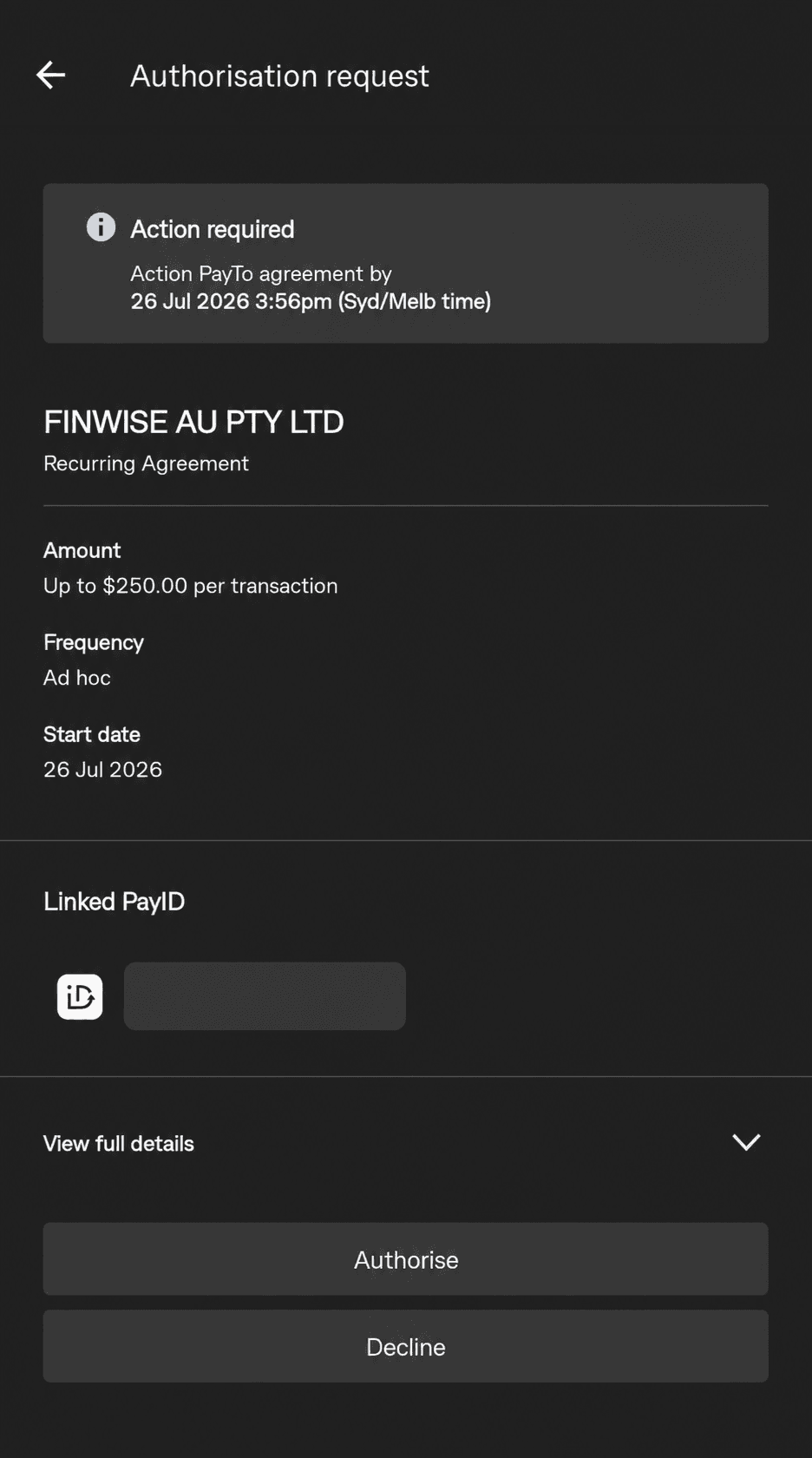
Authorise the agreement
Review the PayTo agreement in your banking app, then authorise it.
Confirm your funds
Return to QwikPay and confirm that the funds have been added successfully to your account.
Once the agreement is authorised, log in to QwikPay and enter the amount you want to add. Confirm with Face ID or your fingerprint, and the funds will be added automatically.
Related articles
Still need help?
Our support team can help with your account.